 PC Remote Controller
Set up in four steps.
You need an Android phone or tablet, a Windows PC and one Wi-Fi network.
-
Install both apps.
The phone app is on Google Play (Android 11 or newer). The PC app is on the Microsoft Store (Windows 10 or 11). Both are free.
-
Join the same Wi-Fi.
Put the phone and the PC on the same network. Guest networks often keep devices apart, so use your main one.
-
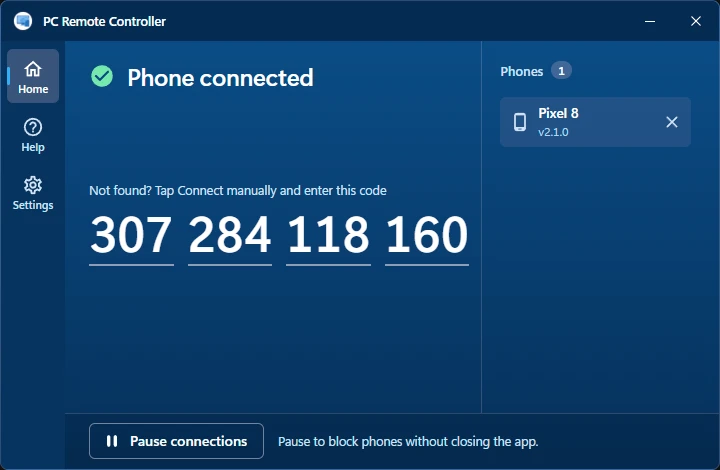
Open the PC app.
Start PC Remote Controller on the PC. When you close its window, it keeps running in the system tray, by the clock.
-
Tap Connect on the phone.
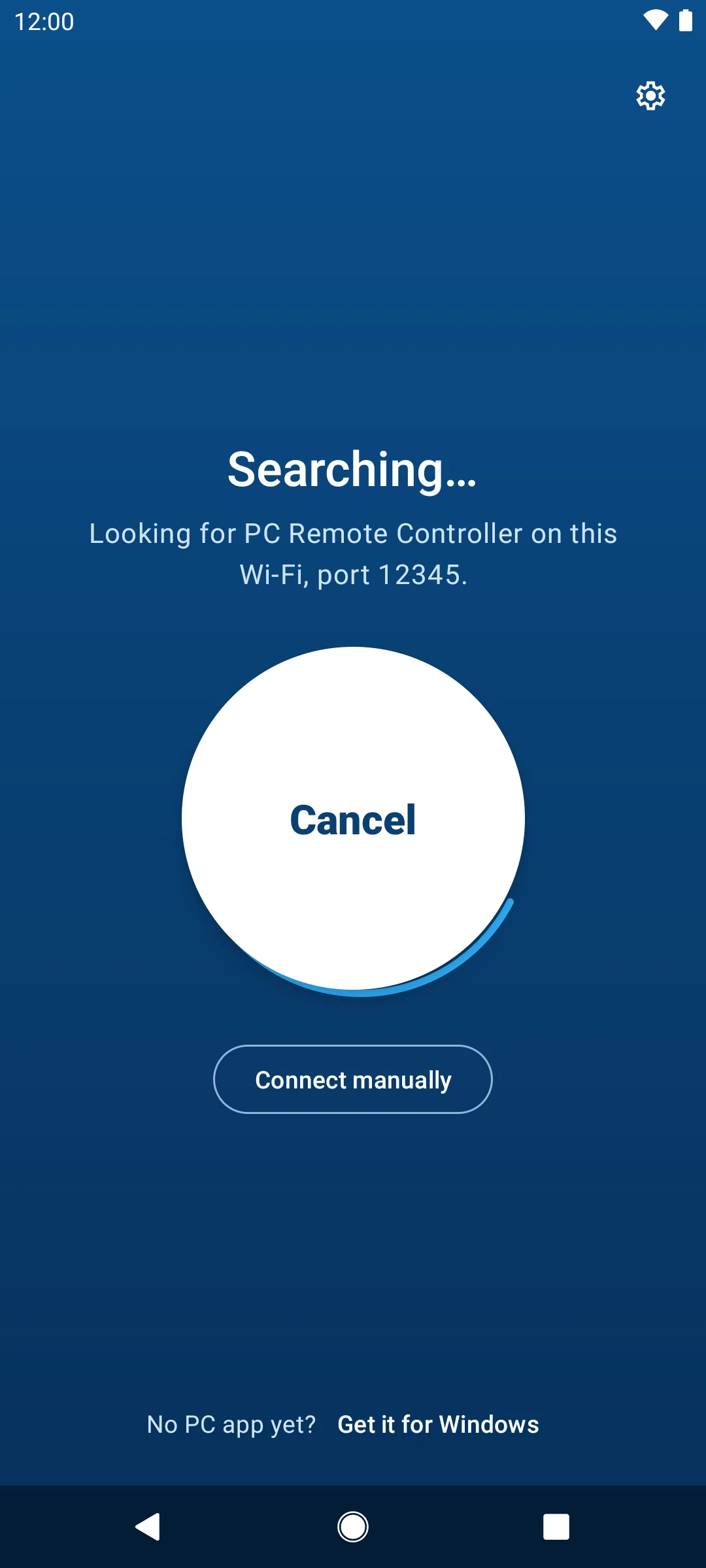
Open the app and tap Connect. It finds the PC on your Wi-Fi by itself.
After the first connection, the PC app offers to start with Windows, so it's ready next time.
If it can't find the PC
Tap Connect manually on the phone and type the code from the PC app's Home. Still not connecting?
- Turn off mobile data on the phone while it connects.
- Check the port: 12345 in both apps, unless you changed it.
- Works on a phone hotspot but not on your Wi-Fi? Turn off "AP isolation" or "client isolation" in your router's settings.
Still stuck? Contact the developer.